Thursday, 28 February 2019

Best Notepad App for iPad (2019)


I want to turn my iPad into a notepad so that I can take notes instead of writing them down. What is the best notepad app for iPad? --from user Ella.

The default notes application on iOS devices is easy to use and has a sleek design. Recent iOS updates have included changes to the Notes app including the ability to add photos to your notes, sketch drawings, and even digitize documents. But if you start frequently using this app then some of its limitations will be clear to you. For example, the notepad is a single sheet, there is no option to make it graph paper, and you can only use one pen type. Thus, we’ll show you the best notepad apps for iPad which will take things to the next level.


Part 1: 4 Best Free Notepad Apps for iPad


Part 2: 4 Best Paid Notepad Apps for iPad


Tip 1: Recommended Stylus for iPad, iPad Pro, or iPad Mini


Tip 2: How to Prevent Data Loss from Your iPad Note App
Part 1: 4 Best Free Notepad Apps for iPad

If you don’t want to spend money on a notepad app for your iPad, then choose one from the following list which are all free.


1. Evernote


2. Paper


3. Penultimate


4. SimpleNote
1. Evernote

Evernote is a very well-known notetaking app for Android and iOS devices. It offers full flexibility over your notetaking capabilities and includes many useful features.


Pros


Sync notes between device.


Password protect notes.


Download notes for offline use.


Notes are stored on Evernote servers.

Cons


To get full access, you must pay.


Limited uploads.
2. Paper

Another free notetaking app is Paper. It is developed with artistic notetaking in mind such as sketching diagrams or creating charts.


Pros


Perfect for creating diagrams.


Different types of pens and brushes are available.


Simplistic interface.


Easy to navigate throughout the features.

Cons


Lack of basic notetaking features.
3. Penultimate

One advantage to Penultimate which makes it one of the best notepad apps for iPad Pro is that it can be connected to your Evernote account. This means that you can use both platforms for different things while having your notes in one place.


Pros


Cross-platform compatibility with Evernote.


Several colours and pens available.


Choose between plain, lined, or graph paper.


Highlight the important parts of your notes.

Cons


Premium subscription required for full access.
4. SimpleNote

As its name implies, SimpleNote has a user-friendly interface while at the same time having a lot of amazing features. Just like if you have written them down, you can reorganize your notes as needed so that they are in order.


Pros


Very simple, ideal for basic notetaking.


Completely free, no premium options.


Access your notes anywhere and on any device.


Search feature making it easy to find specific notes.

Cons


A basic notetaking app, lacks advanced features.
Part 2: 4 Best Paid Notepad Apps for iPad

On the other hand, if you’re willing to pay for the best notepad app for iPad/iPad 2/iPad 3/iPad mini/iPad Air/iPad Pro, here are the ones that we recommend choosing from.


1. Notability


2. Noteshelf


3. Pages


4. GoodNotes
1. Notability


Price: $9.99

Notability is an all-in-one notetaking app. It comes with audio recording, sketching features, and includes drawing features.


Pros


Audio recording can be added to notes.


Convert notes to PDF.


Sync notes with iCloud.

Cons


Expensive for notetaking.
2. Noteshelf


Price: $9.99

Noteshelf is another fantastic app for taking notes. Aside from writing notes, you can sketch graphs and charts, sync the app with popular cloud services, and print notes directly from your iPad.


Pros


Create multiple notebooks.


Password protect specific notes.


Easily add shapes.

Cons


Another expensive app.
3. Pages


Price: $9.99

Pages is preinstalled on most new Apple devices. While it is not strictly for taking notes and more so for writing documents and creating pages, it’s still worth a look.


Pros


Free app available to try before buying.


Automatically linked to your iCloud account.


Add comments to your notes.

Cons


Over-complicated as it isn’t meant for notetaking.
4. GoodNotes


Price: $7.99Sponsor ads:A List of Top 10 Axxo Movies Proxy and Mirror Sites 2019

Sponsor ads:8 Best Offline Music Apps for iPhone to Enjoy Music Everywhere

Sponsor ads:How to Permanently Delete Photos and Videos from Samsung Mobile Phone

Sponsor ads:Top 15 Best Sites Like FMovies for You to Download Movies and TV Shows 2019

Our final paid app is GoodNotes. There are constant updates for this iOS app and it can’t be any better. It is useful for taking notes, editing PDF files, and adding comments to those files.


Pros


Cheaper than other premium notes apps.


Edit and add notes to PDF files.


Organize all of your notes from one place.


Find a specific handwritten note with the search feature.

Cons


Unappealing user interface.
Tip 1: Recommended Stylus for iPad, iPad Pro, or iPad Mini

After you’ve started using your iPad for taking notes you’ll quickly realize the difficulties of using your finger. Therefore, we recommend getting a stylus.


1. Apple Pencil


2. HAHAKEE iPad Stylus


3. CADA Drawing Stylus for iPad
1. Apple Pencil


Price: $89

Unlike other styluses, there isn’t an easily damaged rubber end with Apple Pencil. The solid plastic design is perfect for any iOS device, especially iPads.


Pros


Perfect for drawing on iPads.


Thin tip, making it easy to see what you’re doing.


When drawing, you can shade.

Cons


Very expensive in comparison to other styluses.


Only compatible with newer iOS devices.
2. HAHAKEE iPad Stylus


Price: $34.99

Taking a measly 4 hours to charge, the HAHAKEE iPad stylus has a battery life of 40 hours. Aside from the sleek design, it has a real pen feel to it and has replaceable tips to ensure accuracy.


Pros


Not as expensive as others.


Long battery life.


Automatically turns off if unused.

Cons


Must be charged regularly.
3. CADA Drawing Stylus for iPad


Price: $11.99

Lightweight, reasonably priced, and as straight-forward as it gets - each of these things describes the CADA drawing stylus. It can be used on any touchscreen device, has a very fine tip, and is compatible with all drawing and notetaking apps.


Pros


Doesn’t need to be charged.


Can be used on any touchscreen device.


Very fine tip for precision.

Cons


A basic stylus, not specifically for iPads.
Tip 2: How to Prevent Data Loss from Your iPad Note App

The last thing you want is to lose the notes that you’ve taken (especially if they’re important). Unfortunately, electronics are unpredictable and data loss could occur without any warning. For this reason, we recommend using iMyFone D-Port to take backups of your notes.


Export notes from iTunes or iCloud backups.


Backup only important data (e.g. SMS texts, WeChat or WhatsApp data).


Different versions available for Windows and Mac.


Extract data directly from your iOS device.

Given that iTunes doesn’t allow you to selectively back up your iOS notes, we believe that this is the best thing you can do.

Sponsor ads:

Gihosoft Free iPhone Data Recovery:https://www.gihosoft.com/iphone-data-recovery-free.html

Gihosoft iPhone Data Recovery Free

Free iPhone Data Recovery Software for Windows/Mac

Recover up to 12+ types of files, including contacts, SMS, photos, WhatsApp, Viber, notes, etc.

Restore lost data from iOS devices directly or from iTunes and iCloud backup

Recover iPhone data lost due to iOS upgrade/jailbreak, accidental deletion, device lost or broken

Support all the latest iPhone, iPad and iPod Touch

Both Free and Pro version.

If you lost data after you updated to a new iPhone, you can always use Gihosoft iPhone Data Recovery to get the data back from the old iPhone or backup.You may also like: iphonerecovery.com

If you use android phones, please choose Gihosoft Android Data Recovery.

With Gihosoft Android Data Recovery, no longer afraid of data loss!

Must read:Youtube video downloader for pc

Gihosoft RePicvid Free Photo Recovery Software provides a free photo recovery software for windows to help users recover the deleted or lost photo for free.

Jihosoft Android Data Recovery: the best Android Data Recovery software for Windows and Mac to recover deleted contacts, messages, photos, videos, WhatsApp and etc from Android devices.Tips:How to transfer messages from iPhone to iPhone

jihosoft Free iPhone Data Recovery

Top 10 Apple Watch Apps 2019

Top 10 Apple Watch Apps 2019

Upgrading your Instagram app to iOS version 39 might not be worthwhile for Instagram loving Apple Watch owners. This upgrade which was released on April 2, 2018, is in line with the stance adopted by other big name brands like Google, Twitter, Slack and Amazon who stopped developing dedicated products just for the Apple Watch. In their defense, they have mentioned that what users of the Apple Watch need is just basic notification supports and not an exact recreation of the mobile version of their respective apps.

Their stance remains valid as the actual value the Apple Watch offers users lies in its fitness and health monitoring and tracking functionality as opposed to telling the time or receiving calls, which are both features the Apple Watch shares with the iPhone. Although the watch has gotten to its third series, upon purchasing a new Apple Watch, users frequently ask for the best 2018 apps or the most important apps to install. To answer these queries and many more, we decided to create a list of the best Apple Watch apps in 2018.
Top 10 Apple Watch Apps You Must Have for Your Wrist
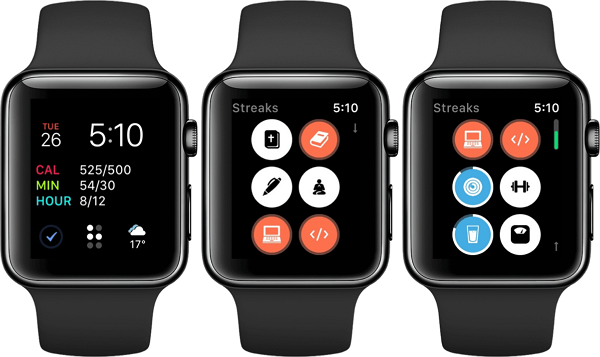
1 Streaks

The key to leading a healthy lifestyle are small consistent lifestyle changes as opposed to the notion of making giant unsustainable strides or changes. Streak helps users track up to 12 different habits simultaneously, whether positive or negative, be it smoking or jogging or taking a walk. Moreover, this application retrieves data from the health app to reduce the process of filling multiple forms just for the app. The app goes for $4.99 and also caters for wheelchair users.


2 Aaptiv

Historically, we think the more expensive a gym membership is, the more committed to working out we are. However, that is not always the case as we often ditch the membership free due to laziness after a while. Aaptiv leverages this loophole by creating a free workout app with additional workout in-app purchases. Users who already purchase some workouts on their iPhone can readily access it on their Apple Watch. Aaptive workout centers on audio fitness classes, categorized into strength training, rowing, yoga and running and about 2,500 of these classes are uploaded weekly.


3 WorkOutDoors

As the name implies, this app was designed for users that prefer working out outdoors. It utilizes vector maps to monitor your location and progress, also it brandishes features such as a customizable stat display for a more personalized feel and a breadcrumb tracker. Additionally, it supports data exporting in GPX format for use in other workout apps and it uses waypoints to provide information to always keep users on track during a workout. It goes for $2.99.


4 Sleep Watch

With an upgrade in the Apple Watch battery, the expected proliferation of sleep tracking applications came as no surprise. With Sleep Watch, users can now wear the watch while sleeping and it monitors your heart rate and sleep quality in determining your sleep quality. With a price of $2.99, Sleep Watch asks users the daily question “how well rested do you feel?”, while offering sleep trend analysis and daily sleep reporting.


5 Circa

This travel assistant app helps with scheduling activities across time zones by helping users identify whether it is a good time or not in another country or another continent for a scheduled activity. It is very useful in identifying the availability of people across time zones for the scheduling of virtual meetings or calls and although it is a niche app, it currently sells for $3.99 on the app.


6 Transit

This public transport solution application is available throughout the USA and some major cities including Paris. It provides departure information via nearby routes, offers direction, station details, subsequent departures etc. This free colorful app is poised to save you from stress and fuss as you have all the information readily available on your wrist.


7 CARROT Weather

This application is a renowned cynical yet intelligent weather forecast app. It not only wishes we were dead but can be outright abusive in delivering the weather reports. Moreover, the information could be displayed quietly on your Apple Watch face or spoken out loud based on your preference. This application is so horribly good that it even has an accruing political tilting setting While its premium club sells for $3.99.


8 Apple Heart Study

This app could save your life by monitoring minute heart irregularities caused by life-threatening conditions such as atrial fibrillation – AFib. This condition is responsible for the death of millions annually but its symptoms remain grossly unnoticed by us, however, the apple heart rate sensors pick them up. This free app notifies users of identified irregularities in your heartbeat rhythm.Also Read:jihosoft Free iPhone Data Recovery
Sponsor ads:
Gihosoft iPhone Data Recovery Free


Free iPhone Data Recovery Software for Windows/Mac

Recover up to 12+ types of files, including contacts, SMS, photos, WhatsApp, Viber, notes, etc.

Restore lost data from iOS devices directly or from iTunes and iCloud backup

Recover iPhone data lost due to iOS upgrade/jailbreak, accidental deletion, device lost or broken

Support all the latest iPhone, iPad and iPod Touch

Both Free and Pro version.

If you lost data after you updated to a new iPhone, you can always use Gihosoft iPhone Data Recovery to get the data back from the old iPhone or backup.You may also like: iphonerecovery.com

If you use android phones, please choose Gihosoft Android Data Recovery.

With Gihosoft Android Data Recovery, no longer afraid of data loss!

Must read:Youtube video downloader for pc

Gihosoft RePicvid Free Photo Recovery Software provides a free photo recovery software for windows to help users recover the deleted or lost photo for free.

Jihosoft Android Data Recovery: the best Android Data Recovery software for Windows and Mac to recover deleted contacts, messages, photos, videos, WhatsApp and etc from Android devices.Tips:How to transfer messages from iPhone to iPhone Jihosoft File Recovery:Recover deleted, Lost, formatted, or corrupted files from PC, flash drive and memory card easily & safely


9 Workflow

This amazing app helps modularize applications for creating new solutions (workflow) on your device. It essentially gives you the ability to combine features from different apps to create an all-new workflow. This watch app although sounding somewhat geeky is a perfect companion for everyone as it serves as a launcher for your iPhone Workflow. The workflows you create can do almost anything, calculate tips, tweet songs or videos, read out messages etc. and this firm was recently acquired by Apple.


10 TripIt - Travel Organizer

Collating travel information has never been easier than with the TripIt app. This app can be setup manually via sending your travel details, hotel bookings, flight details etc. to TripIt, which in return analyzes the information and makes them readily available to you when important. Additionally, it can be setup automatically by enabling TripIt automatically scan your Yahoo, Gmail or Outlook inbox for travel information. Moreover, the watch app serves to utilize travel data to remind users of important travel events about to happen such as heading to the airport or boarding flights. The app is free on the App Store but in-app purchases are available and upgrade of $48.99 is available with some additional features.


The Apple Watch has maintained its leading stride as a health watch in 2018 while offering users limitless functionality on these gadgets. This list of best Apple Watch apps 2018 creates a snippet into the vast potential it offers while promoting user’s health and increasing their quality of life.

Sponsor ads:

Gihosoft Free iPhone Data Recovery:https://www.gihosoft.com/iphone-data-recovery-free.html

Gihosoft iPhone Data Recovery Free

Free iPhone Data Recovery Software for Windows/Mac

Recover up to 12+ types of files, including contacts, SMS, photos, WhatsApp, Viber, notes, etc.

Restore lost data from iOS devices directly or from iTunes and iCloud backup

Recover iPhone data lost due to iOS upgrade/jailbreak, accidental deletion, device lost or broken

Support all the latest iPhone, iPad and iPod Touch

Both Free and Pro version.

If you lost data after you updated to a new iPhone, you can always use Gihosoft iPhone Data Recovery to get the data back from the old iPhone or backup.You may also like: iphonerecovery.com

If you use android phones, please choose Gihosoft Android Data Recovery.

With Gihosoft Android Data Recovery, no longer afraid of data loss!

Must read:Youtube video downloader for pc

Gihosoft RePicvid Free Photo Recovery Software provides a free photo recovery software for windows to help users recover the deleted or lost photo for free.

Jihosoft Android Data Recovery: the best Android Data Recovery software for Windows and Mac to recover deleted contacts, messages, photos, videos, WhatsApp and etc from Android devices.Tips:How to transfer messages from iPhone to iPhone

jihosoft Free iPhone Data Recovery
Sponsor ads:Best 5 Android Apps to Change Photo Backgrounds
Sponsor ads:How to Unblock Blocked Websites with 5 Methods 2019
Sponsor ads:HTC Sync Manager Review
Sponsor ads:How to Delete Embarrassing Word Suggestions from Android Keyboard


Sponsor ads:What is iTunes Helper & How to Disable it from Windows/Mac PC

AirPods Won’t Auto-Pair with MacBook Pro/Air? Try the Methods here!


A major benefit Apple gadgets offer customers is human-centered ease of interconnectivity, be it the Apple watch-iPhone experience or the Mac-iPhone connection or even the Mac- iPad -iPhone -Apple watch connectivity. Also, their ease of syncing to one another via the iCloud makes these gadgets more desirable to most people. Recently, certain users started airing complaints of their AirPods not connecting to their Mac for some unforeseen reasons.

A considerable portion of them complained that although the AirPods appeared to be initially successfully paired on their Macs, it did not play out any sound. Others complained that their AirPods did not connect successfully to their MacBook Pro/Air or the new MacBook at all. These issues have made their use of the Apple AirPods quite frustrating and unproductive.

Moreover, who in their right senses would buy a pair of AirPods just because its design is exquisite, or because it sports a sound enhancing microprocessor but plays no sound? No one we guess. Therefore, this article highlights the best hacks to resolve user’s AirPods not connecting to Mac complaints.
Part 1: How to Connect AirPods to MacBook Air/Pro

Sponsor ads:8 Best PDF Reader & Editor Apps for iPhone and iPad in 2019

Sponsor ads:How to Access and Unlock Android Phone with Broken Screen

Sponsor ads:How to Remove Duplicate Contacts on iPhone and Android Quickly

Sponsor ads:How to Download & Save YouTube Videos to iPhone’s Camera Roll

Sponsor ads:Best 2 Free Methods to Fix Slow USB Transfer Speeds

Thanks to the Apple ingenious design, your AirPods are designed to automatically connect to any device that is linked to your iCloud account. Sadly, glitches occur and things don’t always go smoothly. So to fix this, consider pairing them manually:


Carefully open the AirPods charging case


Long press the small button on the back until its blinking LED pops up


On your Mac, power ON your Bluetooth


From the Bluetooth icon in the top-right screen corner, select Open Bluetooth Preference options


Allow your Mac Bluetooth scan till it sees your AirPods Bluetooth


On your Mac, click AirPods’ pair button and you’re done


Part 2: How to Fix AirPods not Connecting to Mac

These fixes are proven to resolve all AirPods not connecting to Mac issues, so feel free to follow them chronologically:
Method 1: Update your Mac

A basic design operation of Apple’s wireless headphones is the fact that it would not function with any macOS version lower than Sierra. Should you be running any macOS older than that, that could be the reason for the connectivity mishap. To resolve this, update your Mac to the latest available version.


To confirm what macOS your device is running, select Apple logo > About This Mac


Should you macOS be older than the specified Sierra, select the Software update button


Method 2. Remember to charge both the AirPods and its charging case

In this Apple AirPods, the charger case must be charged in order to charge the AirPods. To achieve this, do the following:


Place the AirPods in its charging case, ensure its status light is on


On the charging case, connect a Lightning cable to its Lightning connector


Connect the other end of the cable to a wall charger or a USB port to commence charging


Method 3. Forget AirPods Bluetooth Device on Mac

To reset your AirPods-Mac Bluetooth data, you should consider Forgetting its Bluetooth on your Mac. Selecting this option would enable both devices pair as though they never paired before; ensuring a greater chance of successful pairing. To perform this hack, do the following:


Access the System Preferences tab on your Mac


Select Bluetooth


Tap your AirPods’ Bluetooth once under your Mac Bluetooth result


Move your mouse over the AirPods and tap the circular X tab that appears


When a pop-up appears, select Forget Device


After a few minutes try reconnecting to your Mac manually


Method 4. Make AirPods the Output Device

Your Mac could be connected to another output choice which affects its possible connection to your AirPods. To resolve this and make your AirPods your Macs preferred output device, follow the steps listed:


Ensure that your AirPods charging case is open and that the device is within range


Power on your Mac’s Bluetooth


In System Preferences, select Sound


On the Sound Output tab, select your AirPods


Method 5. Reset your AirPods

This is a simple but crucial step that could potentially resolve your AirPods connectivity issues with your Mac. To achieve this reset, follow these basic steps:


Long press the setup button that is on the back side of your AirPods Charging case


When the status light flickers amber a few times before flickering white, release the button to finish the reset


Method 6. Manually connect your AirPods

Should the above hacks fail to work, retry manually connecting as discussed in Part 1 above. If this still doesn’t work, then try returning the AirPods to the Apple store if you’re within the return period. If not, use Apple’s online support to resolve this.
Part 3: Extra Tip: How to Fix AirPods not Connecting to iPhone

Often times, users also encounter glitches when connecting their AirPods and iPhones. Most often than not, the issue is usually as a function of an iOS error. After utilizing some of the hacks listed above on your iPhone, you should consider using the using certain dedicated software to repair our iPhone’s operating system

An example of such a tool is iMyFone System Recovery that offers speedy fixing of all iOS related glitches. Its usage is distinguishable because of some key features they sport:
Sponsor ads:How to Recover Deleted Contacts with Gmail Account on Android
Sponsor ads:How to Split Pictures on Instagram to Make a Giant Square
Sponsor ads:Convert Video to GIF Free with Top 5 Free Video to GIF Converters

Transfer Music from iPod Touch to Computer without Software for Free 2019

Transfer Music from iPod Touch to Computer without Software for Free 2019
Transfer Music from iPod Touch to Computer without Software for Free
Step1. Plug Your iPod Touch into a USB Port

Start the process off by plugging your iPod touch into a USB port on your computer. Make sure to click yes on the trust message that will pop up on your iPod touch.

For the purpose of this guide we will be assuming you are using a Windows 10 computer. It can also be done on a Mac computer.
Step 2. Use File Browser To Navigate Your iPod Touch

In a Windows file browser window you need to navigate to your iPod Touch. Then click on “View” tab and check option of “Hidden items” . You will see iPod_Control and the Music folder. Both of these might be hidden before following the other steps.


Step 3. Drag And Drop Media Folders

Select the Music folder and drag it to a location on your computer. Then, all the songs will be transferred from your iPod touch to computer without software.


How To Transfer Music From iPod Touch To Computer Without using iTunes

When it comes to maintaining an iPod, iPad, or iPhone, there is no better option than to use iMyFone TunesMate. A versatile program, which allows for you to transfer all of the media files on your iDevice and comes with a load of other features. Most importantly for this article, all media types are supported.

Sponsor ads:

Gihosoft Free iPhone Data Recovery:https://www.gihosoft.com/iphone-data-recovery-free.html

Gihosoft iPhone Data Recovery Free

Free iPhone Data Recovery Software for Windows/Mac

Recover up to 12+ types of files, including contacts, SMS, photos, WhatsApp, Viber, notes, etc.

Restore lost data from iOS devices directly or from iTunes and iCloud backup

Recover iPhone data lost due to iOS upgrade/jailbreak, accidental deletion, device lost or broken

Support all the latest iPhone, iPad and iPod Touch

Both Free and Pro version.

If you lost data after you updated to a new iPhone, you can always use Gihosoft iPhone Data Recovery to get the data back from the old iPhone or backup.You may also like: iphonerecovery.com

If you use android phones, please choose Gihosoft Android Data Recovery.

With Gihosoft Android Data Recovery, no longer afraid of data loss!

Must read:Youtube video downloader for pc

Gihosoft RePicvid Free Photo Recovery Software provides a free photo recovery software for windows to help users recover the deleted or lost photo for free.

Jihosoft Android Data Recovery: the best Android Data Recovery software for Windows and Mac to recover deleted contacts, messages, photos, videos, WhatsApp and etc from Android devices.Tips:How to transfer messages from iPhone to iPhone

jihosoft Free iPhone Data Recovery

Manually Backup iTunes Music Library


Solution 1: Manually Backup iTunes Music Library

Another method you may use, apart from TunesMate, is the manual method. You will need to understand how the manual one works, but if you do not know how to do this, follow the steps below.
1. Backup iTunes music library to PC


First, download a local copy of your music to your PC.


Open iTunes on your computer.


At the upper left corner, click on File.


Locate Library in the drop-down menu and click.


From the resulting menu, select Organize Library.


Now, tick the Consolidate Files box when the Organize Library window appears.


Click OK, and you are done.
2. Backup iTunes music library to an external hard disk
Sponsor ads:9 Best Apple Watch Music Apps to Enjoy Music AnywhereSponsor ads:5 Best Kodi Alternatives You Should Check Out in 2019

This is an option under the above solution 2 that we have been discussing. Yes, you may go further by manually backup your library and media files to an external disk of your choice. Below are the simple steps to take.


First, exit iTunes.


Open your device menu and locate iTunes folder.


Move the iTunes folder from its location to an external drive by dragging it.


Instantly, you will see your library and media files copy to the drive.
Solution 2: Backup iTunes library Using Apple’s iTunes Match

This is the last solution you may use to backup your iTunes music library. And this solution and it is given directly by Apple. To backup using iTunes match, follow the steps below.


On your secondary Mac, open iTunes and navigate to the Account menu.


Sign out of iTunes from the Account menu on your PC .


When the Match tab appears in iTunes, click on it.


Choose yearly subscription and enter your Apple details.


Choose iCloud Music Library to use on your PC.

To backup your iTunes music library, you need these 3 solutions. One of them makes your tasks easier and faster than the others. Find out in this piece.Sponsor ads:

Gihosoft Free iPhone Data Recovery:https://www.gihosoft.com/iphone-data-recovery-free.html

Gihosoft iPhone Data Recovery Free

Free iPhone Data Recovery Software for Windows/Mac

Recover up to 12+ types of files, including contacts, SMS, photos, WhatsApp, Viber, notes, etc.

Restore lost data from iOS devices directly or from iTunes and iCloud backup

Recover iPhone data lost due to iOS upgrade/jailbreak, accidental deletion, device lost or broken

Support all the latest iPhone, iPad and iPod Touch

Both Free and Pro version.

If you lost data after you updated to a new iPhone, you can always use Gihosoft iPhone Data Recovery to get the data back from the old iPhone or backup.You may also like: iphonerecovery.com

If you use android phones, please choose Gihosoft Android Data Recovery.

With Gihosoft Android Data Recovery, no longer afraid of data loss!

Must read:Youtube video downloader for pc

Gihosoft RePicvid Free Photo Recovery Software provides a free photo recovery software for windows to help users recover the deleted or lost photo for free.

Jihosoft Android Data Recovery: the best Android Data Recovery software for Windows and Mac to recover deleted contacts, messages, photos, videos, WhatsApp and etc from Android devices.Tips:How to transfer messages from iPhone to iPhone

jihosoft Free iPhone Data Recovery

Move to iOS Not Working? Here Is The Fix?

Move to iOS Not Working? Here Is The Fix?

Moving to an iPhone hasn’t always been easy. Some users worry that their Android data will be incompatible and while this might sometimes be the case, it’s unlikely. Fortunately, with the Move to iOS app, it’s easier to transfer your data to an iPhone. However, you might still encounter an issue from time to time. Some common situations include Move to iOS being stuck on “Moving items into place…”, “Unable to migrate. Try again later.” or something like these.


Part 1: General Methods When Move to iOS Not Working


Part 2: Alternative Way for Move to iOS Not Working


Tip: iPhone to iPhone Transfer Tool - iMyFone D-Port Pro
Part 1: General Methods When Move to iOS Not Working

Here are a few basic methods you can try if Move to iOS not working.


Method 1: Check The Network Connection on Both Devices


Method 2: Restart Both iOS & Android Devices


Method 3: Switch between Wi-Fi and Mobile Networks


Method 4: Put Android into Airplane Mode


Method 5: Download & Install Latest Firmware
Method 1: Check The Network Connection on Both Devices

The first thing you should do is make sure that both devices are connected to the same network. You can find the network settings for both iOS and Android within the “Settings” app. If they are connected to the same network and you can access the internet fine, the network isn’t the issue.


Method 2: Restart Both iOS & Android Devices

Simply turning a device off can commonly fix this type of problems. Go ahead and turn both devices off -> wait a few minutes and turn them back on -> then try again.


Method 3: Switch between Wi-Fi and Mobile Networks

If you’re moving from an Android device to an iOS device, disable the Android’s Wi-Fi connection and try using mobile networks instead. After a few minutes, if you don’t yield the results you need, try Wi-Fi again.


Method 4: Put Android into Airplane Mode

Another quick solution is to enable Airplane Mode for a few moments on your Android device. This completely shuts down the device’s network connections and can be helpful to fix Move to iOS not working.


Method 5: Download & Install Latest Firmware

Most importantly, ensure that both devices have the most recent firmware installed. Every iOS and Android update includes bug fixes and if the problem you’re experiencing is already known, it may well be fixed.


Part 2: Alternative Way for Move to iOS App Not Working

An alternative solution is to avoid the Move to iOS app altogether and take the manual approach. Below are the alternative fix which we can find for you.


Step 1: Move Files from Android to Computer via USB


Step 2: Transfer The Moved Files from Computer to Your iPhone via iTunes
Step 1: Move Files from Android to Computer via USB

Choose one according to the type of computer you’re using.

For Windows computers:


Connect your Android device using a USB cable and unlock it.


On the device, tap on the notification “USB for...” which appears and choose “Transfer files”.


Back on your computer, a file explorer will appear. Drag the Android files to a folder on your computer that you can access later.


When you’re finished transferring, disconnect your device.


For Mac computers:


Connect your Android device with a lightning cable and unlock it.


Download and install the “Android File Transfer” program.


When a notification “USB for...” appears on your device, tap on it. Then select “Transfer files”.


Back on your computer, use the Android File Transfer windows to drag files off of your device.


Windows and Mac computers are very easy to use and help you when Move to iOS app not working. So after get your data off your Android, you can now drag the data onto iTunes and sync it with your iPhone.
Step 2: Transfer The Moved Files from Computer to Your iPhone via iTunes


Use a lightning cable to connect your iPhone to a computer.


Open iTunes and click on the device icon, then on “File Sharing” from the sidebar.


Choose an app that you want to transfer data to from the list shown.


Click “Add” and locate the files that you want to transfer to your iPhone.


Repeat this process until you’ve transferred all of the data that you want to have on your iPhone.
Tip: iPhone to iPhone Transfer Tool - iMyFone iTransor

Finally, we’ll be showing you iMyFone iTransor. Currently, iMyFone doesn’t support moving files from Android to iPhone, although it will be added in the future. But if you’re going to transfer from iPhone to iPhone, this is the perfect tool. Also the direct transferring data from iPhone to iPhone is not supported now, but it is coming soon.Sponsor ads:

Gihosoft Free iPhone Data Recovery:https://www.gihosoft.com/iphone-data-recovery-free.html

Gihosoft iPhone Data Recovery Free

Free iPhone Data Recovery Software for Windows/Mac

Recover up to 12+ types of files, including contacts, SMS, photos, WhatsApp, Viber, notes, etc.

Restore lost data from iOS devices directly or from iTunes and iCloud backup

Recover iPhone data lost due to iOS upgrade/jailbreak, accidental deletion, device lost or broken

Support all the latest iPhone, iPad and iPod Touch

Both Free and Pro version.

If you lost data after you updated to a new iPhone, you can always use Gihosoft iPhone Data Recovery to get the data back from the old iPhone or backup.You may also like: iphonerecovery.com

If you use android phones, please choose Gihosoft Android Data Recovery.

With Gihosoft Android Data Recovery, no longer afraid of data loss!

Must read:Youtube video downloader for pc

Gihosoft RePicvid Free Photo Recovery Software provides a free photo recovery software for windows to help users recover the deleted or lost photo for free.

Jihosoft Android Data Recovery: the best Android Data Recovery software for Windows and Mac to recover deleted contacts, messages, photos, videos, WhatsApp and etc from Android devices.Tips:How to transfer messages from iPhone to iPhone

jihosoft Free iPhone Data Recovery

Can’t Add Bookmarks in iPad/iPhone Safari Browser? Here’s Fix


Fix 1: Clear Safari Browser Cookies on iPad/iPhone

Step 1: Open your iPhone settings and go to the left side of the menu to choose Safari.

Step 2: Now that you are in the Safari settings, scroll to the Advanced option of the browser and click on it.

Step 3: On the page, click on Website Data. On the Website Data page, you have the option of clearing cookies of a particular website or of all websites. Click All Website Data since we are wiping out all the browser’s cookies. After you’ve done this, your Safari browser should be free of all cookies and after this, reboot your iPhone/iPad.


Fix 2: Wipe All Safari Browser History on iPad/iPhone

Sponsor ads:Apps To Brighten & Enhance Videos Taken on iPhone

Also Read:Fix and Repair Old Photos?

If fix one doesn’t work for you, don’t fret, here is another fix you can apply.

Step 1: From Safari setting, click on Clear History and Website Data. This button should be right below the Privacy setting button.

Step 2: On clicking on Clear History, an authentication box will pop to confirm your choice, click on Clear. Wiping out your Safari Browser History is a more thorough cleaning than clearing your browser’s cookies out.


Fix 3: Restore Safari Browser iPad/iPhone Safari Browser

Please turn off your iCloud first before we go into the processes.

Step 1: Go into your iPad/iPhone setting.

Step 2: Now on the left-side menu, scroll to where you have the iCloud setting and click on it.

Step 3: Now in the iCloud setting, go to where there is Safari. If it is turned on, turn it off.

Step 4: After all that is done, reboot your device. When the bookmark is fixed, you can turn iCloud on again.


Applying fixes 1, 2 and 3 might make you lose your Safari browser history and data, but don’t worry, iMyFone D-Port Pro has you covered. Please note, before applying any of the fixes, you firstly must back up your data. iMyFone D-Port Pro will restore your backup files to your device after the fixes. Although for now, you cannot only back up and restore Safari bookmark, this will be supported soon.


Sponsor ads:

Gihosoft Free iPhone Data Recovery:https://www.gihosoft.com/iphone-data-recovery-free.html

Gihosoft iPhone Data Recovery Free

Free iPhone Data Recovery Software for Windows/Mac

Recover up to 12+ types of files, including contacts, SMS, photos, WhatsApp, Viber, notes, etc.

Restore lost data from iOS devices directly or from iTunes and iCloud backup

Recover iPhone data lost due to iOS upgrade/jailbreak, accidental deletion, device lost or broken

Support all the latest iPhone, iPad and iPod Touch

Both Free and Pro version.

If you lost data after you updated to a new iPhone, you can always use Gihosoft iPhone Data Recovery to get the data back from the old iPhone or backup.You may also like: iphonerecovery.com

If you use android phones, please choose Gihosoft Android Data Recovery.

With Gihosoft Android Data Recovery, no longer afraid of data loss!

Must read:Youtube video downloader for pc

Gihosoft RePicvid Free Photo Recovery Software provides a free photo recovery software for windows to help users recover the deleted or lost photo for free.

Jihosoft Android Data Recovery: the best Android Data Recovery software for Windows and Mac to recover deleted contacts, messages, photos, videos, WhatsApp and etc from Android devices.Tips:How to transfer messages from iPhone to iPhone

jihosoft Free iPhone Data Recovery

Fix “A required iTunes component is not installed (-45075)” on Windows 10/8/7 2019


1 Repair AppleApplicationSupport.msi via WinRAR

Sometimes the error 45075 occurs because of a corrupted/damaged iTunes setup. It could be because of an incomplete download or some other issue. You can try to re-download the setup. If that doesn't fix the error, then it is recommended that you repair the setup via WinRAR. Specifically, there is a file/component in iTunesSetup.exe called AppleApplicationSupport.msi, that's what you need to repair. The process to do this is quite simple.

Step 1. Download WinRAR from the software's official website and install it on your computer.

Step 2. Now navigate to the iTunesSetup.exe file, right-click on it and choose 'Open with WinRAR'.

Step 3. Once the iTunesSetup.exe is opened in WinRAR, find and open AppleApplicationSupport.msi by double-clicking on it.


Step 4. A new installer window will open. There, choose 'Repair' option. Then click on "Next >", WinRAR will start the repair.


Step 5. Once the repair is completed, you can close WinRAR and install iTunes without any issues.


3 Restart Apple Mobile Device Service

Sometimes this error is associated with Apple Mobile Device Service. So it is recommended that you restart this service in your Windows PC. Restarting the service may or may not fix the problem, but it is worth trying.

Step 1. First, make sure that iTunes and all its related components are closed. If they are not, then close them before proceeding.

Step 2. Hold down 'R' and 'Win' key on your keyboard simultaneously. A search bar will open.

Step 3. Type 'services.msc' in the provided textbox/search bar and then press 'Enter' key to proceed. 'Services' window will open.


Step 4. In the 'Services' window, find Apple Mobile Device Service and then right-click on it and choose 'All Tasks'. Restart the service by choosing 'Restart' option in that section.


Step 5. Wait till the process is completed, then close 'Services' window and restart your computer. The problem should be solved now.
4 Check Windows Firewall

As mentioned before, iTunes error -45075 usually occurs because a security application (probably Windows Firewall) blocks the operation/functionality of iTunes. So it is worth checking the Windows Firewall to make sure that iTunes is whitelisted.

Step 1. Hold down 'R' and 'Win' key on your keyboard simultaneously and then type 'firewall.cpl' in the provided textbox. Windows Firewall will open.

Sponsor ads:

Gihosoft Free iPhone Data Recovery:https://www.gihosoft.com/iphone-data-recovery-free.html

Gihosoft iPhone Data Recovery Free

Free iPhone Data Recovery Software for Windows/Mac

Recover up to 12+ types of files, including contacts, SMS, photos, WhatsApp, Viber, notes, etc.

Restore lost data from iOS devices directly or from iTunes and iCloud backup

Recover iPhone data lost due to iOS upgrade/jailbreak, accidental deletion, device lost or broken

Support all the latest iPhone, iPad and iPod Touch

Both Free and Pro version.

If you lost data after you updated to a new iPhone, you can always use Gihosoft iPhone Data Recovery to get the data back from the old iPhone or backup.You may also like: iphonerecovery.com

If you use android phones, please choose Gihosoft Android Data Recovery.

With Gihosoft Android Data Recovery, no longer afraid of data loss!

Must read:Youtube video downloader for pc

Gihosoft RePicvid Free Photo Recovery Software provides a free photo recovery software for windows to help users recover the deleted or lost photo for free.

Jihosoft Android Data Recovery: the best Android Data Recovery software for Windows and Mac to recover deleted contacts, messages, photos, videos, WhatsApp and etc from Android devices.Tips:How to transfer messages from iPhone to iPhone

jihosoft Free iPhone Data Recovery


Step 2. Make sure everything is in green in Windows Firewall. If it's in red, then turn them into green by following the on-screen instructions.

Step 3. Next, choose 'Allow an app or feature through Windows Firewall' option.


Step 4. Then click 'Change settings' to proceed. A list of programs will be displayed.

Step 5. From the list, make sure that iTunes and Bonjour are both selected over Private and Public network. After that, install or run iTunes. The error should be fixed now.


Final Words

If you are not familar with computer technologies or operations, do not hastily try the manual ways because you will be in danger of losing important data or influencing iTunes or even your computer performance. Try the ways carefully or instead, let iMyFone TunesFix do all the things for you. It will make your life much easier.Also Read:Top 8 iOS Emulators To Run iOS Apps On Windows PC & Laptop in 2019

TCL vs. Hisense

  TCL vs. Hisense TCL and Hisense are both  Chinese electronics companies  that make televisions and other appliances. Here are some key dif...