Wednesday, 31 July 2019

How to Restrict an App's Location Access in iOS 13


Apple has doubled down on its privacy features in iOS 13, giving iPhone and iPad users a more granular view of how apps access their location information.


On Apple devices, the location services that apps can tap into use GPS, Bluetooth, and crowd-sourced Wi-Fi hotspot and cellular mast locations to determine your approximate location. The good news is that iOS 13 makes you more aware of how often apps are tracking you, as well as their motivation for doing so, and importantly it makes sure you're in control of your data.


If an app grabs your location data, iOS may display a popup notification showing you a map with the data that the app has tracked, as well as the specific reason why the app is tracking you, along with the question "Do you want to continue allowing this?"


Armed with this information, you'll usually be given three options: Allow While Using App, Allow Once, and Don't Allow. The first option limits the app's access to your location data to when the app is actively being used, the second allows it to track your location just this once, while the third disables location tracking completely.


You can expect to see the "Just Once" option appear when you first launch a just-installed app. Otherwise, you can check out how apps on your device are using location services anytime you like by opening the Settings app and tapping through to Privacy -> Location Services.


From here, you can change each app's permissions (Never / Ask Next Time /While Using the App / Always) and you'll also learn the reason why an app wants to access your location, allowing you to enable or disable location services on an ad-hoc basis.


The options you choose will depend on the app in question – some apps may have just cause to track your whereabouts in the background, while others may not. The point is Apple wants you to be in control of this behavior, so you can expect similar periodic notifications about what an app is up to with your location information.If you lost data after you updated to a new iPhone, you can always use Gihosoft iPhone Data Recovery to get the data back from the old iPhone or backup.You may also like: iphonerecovery.com

Monday, 29 July 2019

iOS 13 and iPadOS 13 Beta 5: What’s New

iOS 13 What's New Beta
Apple today released the fifth developer beta of iOS 13 and iPadOS 13. Despite being aimed at fixing some major bugs and stability issues, the new beta builds also come with plenty of minor new changes and enhancements.
Below are all the changes — major or minor — that Apple has made with iOS 13 and iPadOS 13.

What’s New in iOS 13 and iPadOS 13 Beta 5

Adjustable Home Screen Grid
The size of the grid of icons on the home screen can be adjusted in iPadOS 13.
Old but useful Option Restored in Safari
The Open in New Tab feature has been restored in Safari.
Volume HUD with feedback
There’s now a haptic feedback when one reaches the maximum/minimum volume levels. The Volume HUD UI also been slightly tweaked. When adjusting the volume using the physical buttons, there are now more granular steps.
Improved Share Sheet
The Share Sheet gets a UI tweak and now has the option of pinning your favorite actions on top.
Smaller Cursor
There’s an option to reduce the cursor size even further in iPadOS 13.
Rounder Screenshots
Screenshots now have rounded edges to match the rounded edges of the display.
Cleaner Screenshots
The Volume HUD is automatically hidden while taking a screenshot.
Missing Automations Tab in Shortcut
The Automation tab in Shortcut is missing in iOS 13 and iPadOS 13 beta 5, though it has been confirmed that the feature will be restored in the next beta.
New Achievements in Move Goals
There are new achievements in the Activity app for Move goals.
New Wallpapers for Home App
The Home app gets a bunch of new wallpapers in iOS 13 and iPadOS 13 beta 5.
Splash Screen for Health App
The Health app gets a new splash screen. The articles related to hearing and menstrual cycle also have new images.
[Via r/iOSBeta]
Sponsor ads:
Gihosoft RePicvid Free Photo Recovery Software provides a free photo recovery software for windows to help users recover the deleted or lost photo for free.
If you lost data after you updated to a new iPhone, you can always use Gihosoft iPhone Data Recovery to get the data back from the old iPhone or backup.You may also like: iphonerecovery.com

Sunday, 7 July 2019

How to Silence Robocalls And Spam Calls Automatically on iPhone


Ignorance is bliss. And this is best applicable to unknown callers. Anyone who’s not in your contact book. They’re either a spam caller, a robocall, or an unknown number that you probably don’t want to talk to. If you’re privileged enough that you don’t need to pick up calls from anyone for your job or personal life, you can automate this blissful process using a new feature in iOS 13. Learn how to automatically silence unknown and spam calls in iOS 13.
How to Silence/Mute Robocalls and Spam Callers on iPhone
How This Feature Works

Over the past couple of years, Apple has made it easier to deal with spam calls, robocalls, and spam SMS, but it was dependent on third-party apps. You can install apps like Truecaller to automatically block spam SMS and spam calls, or at least to alert you of robocalls. But in my personal experience, this rarely worked well. Others, especially in the west, have a better experience using apps like Nomorobo and Hiya. But still, nothing beats a global, built-in kill switch. Which is what the new iOS 13 feature is.

It’s called Silence Unknown Callers and it does just that. It will automatically silence a call from anyone who is not in your contact book. You won’t hear a sound or any vibration, even if your phone is not in Silent mode. If you have a Voicemail setup, the call will be directed automatically to voicemail. This would be a good time to get a Visual Voicemail service on your carrier so you can read the transcript of the message later if you wish.

If you don’t have Voicemail feature (which I don’t), the calls are just silenced and rejected. They’ll show up in the Phone app as a missed call and you can call them back if you want (unlike blocked calls). Or you can just enjoy the bliss.
Automatically Mute/Silence Unknown Callers on iPhone in iOS 13

This feature needs to be enabled from the Settings app.

Step 1: After updating to iOS 13 on your iPhone, open the Settings app.

Step 2: Scroll down and tap on the Phone option.

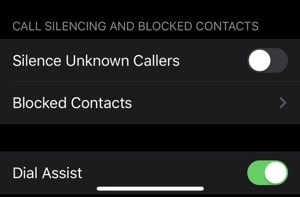
Step 3: Here, scroll down to the Call Silencing and Blocked Contacts section.


Step 4: Turn on the Silence Unknown Callers feature.
More iOS 13 How-tos

We’re working on bringing you more detailed guides for how to use the new and awesome features in iOS 13. Once you’ve read our iOS 13 tips and tricks article, read our how-tos below.

Chuwiには、カスタマイズされたラップトップ、タブレットPC、妥協のない品質、安定性、サポート、パフォーマンスを備えたミニノート pcエクスペリエンスの世界有数のテクノロジーパートナーになることをミッションがあります。


Sponsor ads:

Gihosoft RePicvid Free Photo Recovery Software provides a free photo recovery software for windows to help users recover the deleted or lost photo for free.

If you lost data after you updated to a new iPhone, you can always use Gihosoft iPhone Data Recovery to get the data back from the old iPhone or backup.You may also like: iphonerecovery.com

Monday, 1 July 2019

Tumblr Video Not Working on iPhone


Way 1. Check the Network

The next thing that you can do is to check the network that you're using to see if there's any kind of problem with it. A potential problem could cause your phone not connecting to the video and could result in difficulty watching a video.

Step 1: Go into your settings and select "General" and then choose "Reset".

Step 2: Select "Reset Network Settings" and log in to your network again.


Way 2. Update Tumblr App

Sometimes your app is outdated and you need a newer version. If that's the case, you'll need update the app and see if that fixes the problem that you're having.

Step 1: Go into the app store.

Step 2: Check available updates and update the app if available.
Way 4. Uninstall & Reinstall Tumblr App

You can also try to remove the app entirely and then install it again. This is actually a simple process as well and could fix a glitch in the app.

Step 1: Press and hold on any app on your home screen.

Step 2: When the apps shake and the "x" appears, find the app you want. Click the "x" to delete and accept that you want to delete the app.

Step 3: Press the home key to stop the apps from shaking.

Step 4: Go into the app store and search for the Tumblr app. Now click to install the app.


Way 3. Restart Your iPhone

Sometimes all it takes to get your apps work again is simply to restart your device. It's actually quite easy to do this and you'll be on your way again in no time.

Step 1: Press and hold the power button.

Step 2: Slide the power off bar to the side. Wait for your device to power down.

Step 3: Press and hold the power button. Wait for your device to power up.


Way 4. Update iOS Version

If your device is not currently operating on the latest version of iOS that could be the problem you're having with your videos and anything else. It's easy to check.

Step 1: Go into device settings and select "General".

Step 2: Select "Software Update" and check for a new version.


Tip. What to Do If Losing Data after Fixing

Well, that actually makes things a whole lot easier because you can try out different options. Primarily, you can just restore an older backup to your device.

Sponsor ads:

Chuwiには、カスタマイズされたラップトップ、タブレットPC、妥協のない品質、安定性、サポート、パフォーマンスを備えたミニノート pcエクスペリエンスの世界有数のテクノロジーパートナーになることをミッションがあります。


AirPods Aces Waterproof Earbuds Test against Beats and Samsung Galaxy Buds


One of the biggest qualm most of us have with the AirPods is that it is not water-resistance. Despite the lack of official ratings, AirPods have generally fared well when immersed in water. CNET compared AirPods with other truly wireless buds that are water-resistance and surprisingly, AirPods fared better than some of its rivals.

CNET chose three truly wireless in-ear headphones and subjected them to a myriad of water-related tests. The AirPods, Samsung Galaxy Buds (IPX2) and Beats Powerbears Pro (IPX4) were pitted against each other. The IPX2 rating translates to surviving drops of water falling on it, like during rain or even sweat. Meanwhile, IPX4 rating is conferred to devices that can survive a strong splash of water for up to ten minutes.

The first bout of the test was a sweat test. Real life situations were recreated and the three headsets were tested.

To test the claims, Lexy and I took simulating a sweaty workout at the gym. We wore each pair of earphones and sprayed each other in the face with water until droplets trickled down the sides of our heads.

The folks at CNET removed the devices after the workout session and dried them. All three devices passed the test with no damage whatsoever.

The second test was brutal and involved dunking each pair of headphones in a fish bowl.

We dunked each pair into a clear fish bowl with a foot of water for five seconds. It’s worth noting that the AirPods went about two seconds over because of bad time-keeping on our part. We just love pushing the AirPods beyond what they are designed to do.

This is where we expect the AirPods to fail right? No thats not what happened. All three headphones emerged unharmed by the test. There was no deterioration or any impact on audio quality.

I am pretty sure most of us have tossed clothes in the washing machine without realizing that our ear-phones are inside the pockets. A test on similar lines was recreated.

We took each set of buds out of their cases and zipped them up in a jacket pocket before throwing them into separate washing machines with a few more items that needed washing. All three machines were set on a normal 30-minute cycle with cold water and laundry detergent.Sponsor ads:

Gihosoft RePicvid Free Photo Recovery Software provides a free photo recovery software for windows to help users recover the deleted or lost photo for free.

If you lost data after you updated to a new iPhone, you can always use Gihosoft iPhone Data Recovery to get the data back from the old iPhone or backup.You may also like: iphonerecovery.com


In this test, the Samsung Galaxy Bud gave away and faint music could be heard from one of the earbuds while the other one was completely dead. Thankfully PowerBeats Pro worked just fine. AirPod had taken very little damage and it sounded muffled.

The AirPods had a better recovery: both had decent volume, although the music didn’t sound as crisp as before all of our water challenges and the audio clip recorded from the microphone still sounded muffled.

The test teaches us a thing or two about truly wireless in-ear headphones. Firstly, none of them are completely water-resistance and it is almost always a bad idea to bring it in contact with water. That being said, the water resistance rating will offer you some sort of assurance when you get wet in rain. Did you ever drop your AirPods into the water? Let us know if AirPods survived or met a watery grave!

[via CNET]

TCL vs. Hisense

  TCL vs. Hisense TCL and Hisense are both  Chinese electronics companies  that make televisions and other appliances. Here are some key dif...