Sunday, 27 October 2019

How to Enter DFU or Recovery Mode on iPhone 11, iPhone 11 Pro, and iPhone 11 Pro Max

iPhone 11 Recovery and DFU Mode
Got yourself a new iPhone 11 or iPhone 11 Pro and wondering how you can put it in DFU or Recovery mode? Follow this detailed guide to know how.
The Recovery and DFU mode can come in handy if you were tinkering with your iPhone and it stopped booting completely for some reason. The process to boot these phones into DFU and Recovery mode is also a bit different from older iPhones that featured a physical home button.
Before I tell you how to boot your iPhone 11 or iPhone 11 Pro into Recovery or DFU mode, it is important to know the differences between the two.

Recovery Mode vs DFU Mode: What’s the Difference

DFU Mode

DFU mode stands for Device Firmware Update mode. It is a special mode that allows the iPhone to interface with the iTunes software on a Mac or PC, but without invoking the iBoot process. Since it bypasses the iBoot (the bootloader in iOS devices) process, DFU mode can be used in different situations including upgrading the iOS firmware, downgrading firmware, and even rebooting your tethered jailbroken device. When your iPhone is in DFU mode, its display will be totally black.

Recovery Mode

Unlike the DFU mode, putting your iPhone in recovery mode invokes the iBoot process. It ensures that the user is actually attempting to install a signed firmware version that is equal to or greater than the one that’s already on the iPhone that’s in Recovery mode. When your iPhone is in Recovery mode, the iPhone screen will prompt you to connect to iTunes. This is the only way to distinguish if your iPhone is in recovery mode or DFU mode.

How to Enter Recovery Mode on iPhone 11 and iPhone 11 Pro

Follow these steps to put iPhone 11, iPhone 11 Pro, and iPhone 11 Pro X in recovery mode:

Step 1: Update iTunes

First, update to the latest iTunes release. If iTunes is currently running on your Mac or PC, quit it. If you are running macOS Catalina, you don’t need to bother with iTunes since it is no longer a part of the OS.

Step 2: Connect iPhone 11 or iPhone 11 Pro to Computer

Connect your iPhone 11 or iPhone 11 Pro to your Mac or PC. Accept the prompt to trust the PC if you are connecting the iPhone to it for the first time.

Step 3: Hard Reset

Proceed to force reboot your iPhone 11 or iPhone 11 Pro while it is connected to the computer.
To do that, press the Volume Up button, then quickly press the Volume Down button and then press and hold the Side button till the iPhone reboots and you see the connect to iTunes screen on your iPhone. Do not let go of the side button when you see the Apple logo. Wait until the logo to connect the phone to PC shows up.

Step 4: Restore or Update iPhone

You will automatically see a prompt in iTunes on your PC or Mac asking you to Restore or Update your iPhone 11 or iPhone 11 Pro. On macOS Catalina, a new finder window will open with a similar prompt.
iPhone 11/Pro DFU Mode
Selecting the Update option will lead to iTunes trying to update your iPhone 11/Pro to the latest iOS release without touching your data. If you select Restore, all data from your iPhone will be entirely wiped out.

How to Exit Recovery Mode on iPhone 11 and iPhone 11 Pro

If you want to exit recovery mode, disconnect your iPhone 11 or iPhone 11 Pro from the computer and press the Side button to boot it into iOS.

How to Boot iPhone 11 and iPhone 11 Pro into DFU Mode

In case recovery mode does not work, you can boot your iPhone 11, iPhone 11 Pro, or iPhone 11 Pro Max into DFU mode. This mode is primarily used when you want to downgrade your iPhone to a lower iOS version.
Step 1: Connect iPhone to a PC and open iTunes on it. On macOS Catalina, you don’t need to worry about opening iTunes.
Step 2: Press the Volume Up button, then quickly press the Volume Down button and then press and hold the Side button until your iPhone 11’s display turns black.
Step 3: Press the Side button and Volume Down button for 5 seconds.
Step 4: Let go of the Side button but continue pressing the Volume Down button.
Step 5: Within a few seconds, your PC should recognize your iPhone 11 or iPhone 11 Pro and that it is running in DFU mode.
If recognized, you will see a message prompting you to update your iPhone before it can be used. If you don’t see the message, it would mean that your iPhone has not entered into DFU mode.Also Read:Watermark Removal Tools

How to Exit DFU Mode on iPhone 11, iPhone 11 Pro

To exit DFU mode on your iPhone 11, iPhone 11 Pro, or iPhone 11 Pro Max, follow the steps below.
Step 1: Press the Volume up button.
Step 2: Press the Volume Down button.
Step 3: Press and hold the Side button until you see the Apple logo on the display.


Still facing any issues while trying to boot your iPhone 11, iPhone 11 Pro, or iPhone 11 Pro Max into DFU or Recovery mode? Drop a comment so that we can help you out!Also Read:Download Korean Dramas For Free


Tuesday, 22 October 2019

You Can Take These Economical AirPod Alternatives Anywhere [Deals Hub


Have you been searching high and low for Bluetooth earphones that fit in with your busy life? TR9 True Wireless Headphones are quality on-the-go earphones that was not only lightweight but totally ergonomic to sit in and around your ear comfortably all day. And though they usually retail for $119, they’re available now in the iPhone Hacks Deals Hub for just $34.99.

The TR9 True Wireless Headphones are versatile enough to keep up with the busiest schedules. For those running low on time, they’re equipped with Bluetooth 5.0 + EDR to ensure faster data transfer and improved battery life. Listen to high quality audio in peace with the cVc 6.0 active noise-cancellation for up to 4 hours, then pop them in the charging case for more listening time. Their ergonomic design means they fit comfortably in your ear no matter where the day takes you — from the gym to the office. Whether you’re taking an important phone call or listening to your favorite playlist on a jog, these headphones get the job done.Also Read:Audio Editing software

Also Read:ListentoYouTube Alternatives


Spotify Is Offering a Free Google Home Mini for Premium Subscribers

Google Home mini
Spotify Premium subscribers now have yet another reason to smile. The streaming giant has announced a free Google Home Mini for its premium subscribers till November 15th or till stocks last. It is worth noting that Spotify is offering a previous-gen Google Home Mini speaker.
Google Home Mini is currently available for $50. In order to get Google Home Mini, you need to follow a few steps. The promotion is valid for current and new Spotify users. If you are still on trial, then you need to end it early and pay for the subscription. In such a case, the trial period will be forfeited.
“Join Premium now and get a Google Home Mini on us. Premium Individual and Family plans include a Google Home Mini at no extra cost.”- Spotify
As mentioned earlier, you need to take certain steps in order to get the Google Home Mini.Also Read:King Root and Its Best Alternative 2019
  • Go to Spotify’s promotional website. Log in, if you are a new customer you need to sign up.
  • After logging in you need to select if you have an Individual or Family Plan. By doing this you reserve Google Home Mini and Spotify confirms the same by sending you an email. In the next step, you will get another email that links you to Google online store. Now all you need to do is apply the coupon and get Google Home Mini for free.
Needless to say the fine print puts forth certain clauses. The promo is not available for trial users, neither is it available for Premium Student Play. If you have already received Google Home Mini via last year’s offer then you will not be able to get it this year.Also Read:Run and Use JioTV on PC/Mac


Monday, 21 October 2019

DigiTimes: 16-inch MacBook Pro Could Launch By End of October


Apple might not hold a media event this month but it looks like the company does intend to launch the 16-inch MacBook Pro as soon as possible. Citing supply chain sources, DigiTimes says that Apple will launch the 16-inch MacBook Pro by the end of October with Quanta Computers already starting volume shipments of the device.

While the publication does have a sketchy track record, we have heard the October-end launch timeframe for the 16-inch MacBook Pro from multiple sources. Icons depicting the 16-inch MacBook Pro have also been found in the first two beta builds of macOS Catalina 10.15.1 suggesting that Apple is indeed working on them and that their launch is imminent.

The 16-inch MacBook Pro will come with smaller bezels surrounding its display which is what will allow Apple to fit a 16-inch display in a MacBook that’s no bigger than the existing 15-inch model. The new MacBook Pro is expected to feature Intel’s 9th gen Core processors along with AMD’s latest 7nm Navi GPUs. It will also mark the return of Apple’s scissor mechanism keyboard which has proven to be far more reliable than the butterfly mechanism keyboard found in existing MacBook Pro models. Rumors point to the model carrying a base price tag of $3,000 and sitting above the 15-inch MacBook Pro.Also Read:King Root and Its Best Alternative 2019

Also Read:Fix iPhone Keeps Disconnecting from WiFi After iOS Upgrade

Our Take

It would be a bit of an odd move from Apple to announce the 16-inch MacBook Pro without any media event. The company was widely expected to hold a media event in the last week of October where it would announce the 16-inch MacBook Pro alongside Apple Tags, 2019 iPad Pro, and iMac refresh. However, that seems very unlikely now as Apple is yet to send out press invites for any such event. Thus, if Apple does announce the 16-inch MacBook Pro next week, it will probably happen via a press release.

[Via DigiTimes]

Wednesday, 9 October 2019

How to Fix Black Camera Issue on iPhone 11, iPhone 11 Pro and iPhone 11 Pro Max


One of the best features of my iPhone 11 Pro Max is the new triple camera system. As Steve’s iPhone 11 Pro review and his detailed camera comparison between the iPhone 11 Pro and Samsung Galaxy Note 10+ has revealed, Apple has significantly upped its game. The other major improvement is there is no shutter lag. However, one annoying issue I am facing with my iPhone 11 Pro Max camera is that it goes black when I launch the Camera app.

I hope Apple fixes it in subsequent updates. But until then here are some solutions you can try to fix the annoying issue where iPhone 11, iPhone 11 Pro or iPhone 11 Pro camera goes black.
What is the Black Camera Issue on iPhone 11, iPhone 11 Pro and iPhone 11 Pro Max?

Before we explain how to fix the annoying black camera issue on your new iPhone, let me explain the issue so you don’t misunderstand it for some other issue. Basically, when you launch the Camera, instead of seeing the objects, the Camera app is black, which makes it impossible to take a photo. You can see the screenshot below of the black camera issue on the iPhone.


It can be quite annoying when you’re trying to capture a precious moment with your iPhone camera.Also Read:photo to pc

Also Read:Free Farming Games for Android


How to Fix the Black Camera Issue on iPhone 11, iPhone 11 Pro and iPhone 11 Pro Max
Method 1: Force Close or Kill the Camera App

Step 1: Swipe Up and Hold

Bring up the App Switcher on the iPhone 11, iPhone 11 Pro or iPhone 11 Pro Max by swiping up from the bottom of the screen, holding your finger on the screen for a second and then removing it.

Step 2: Swipe Up to Force Close

You can then close the Camera app by swiping up on the Camera app card.


After force closing the app, relaunch the app, the black camera issue should be resolved.
Method 2: Switch Camera

Another option is to switch the camera, so switch from a rear-facing camera to a front-facing camera, and then switching back to the rear-facing camera. Some users have found that it also fixes the black camera issue.Tips:

Recover Photos, Videos, Contacts, Messages, Notes, Call History & Calendar from iPhone. Recover Lost or Deleted Data from Your iPhone in Just a Few Clicks. Free Download Now. Download Free Trial Now. Do-It-Yourself Software. 3 Million+ Happy Customer.


After doing some research I noticed that the black camera issue is seen in older iPhones as well, but strangely I hit the issue only on my iPhone 11 Pro Max. We have seen some sites asking users to restore their iPhone etc, but we don’t think you need to take such an extreme step to fix an issue. We do hope Apple fixes the issue in the next iOS 13 software update.

Are you facing the black camera issue on your shiny new iPhone 11, iPhone 11 Pro, and iPhone Pro Max? Let me know if the solutions mentioned below helped in resolving the issue.

Monday, 9 September 2019

How to Watch Apple’s iPhone 11 Event Live


How to Watch Apple’s iPhone 11 Event Live


On September 10th at 10:00 a.m. PDT, Apple will announce the iPhone 11 series alongside the Apple Watch Series 5 at its iPhone 11 ‘By Innovation Only’ event. Like every year, Apple will be live streaming the event so you can watch it live from the comfort of your couch or office on a device you wish.

The event is scheduled to start at 10:00 a.m. PDT, and it is expected to last for around 2 hours. It will be a jam-packed event as Apple has a lot to announce apart from the new iPhones. The company will likely also provide more details about the pricing and availability of Apple Arcade and Apple TV+ at the event.

If you want to watch the iPhone 11 event live, follow the steps live.
Watch Apple’s 2019 iPhone 11 Event Live on Windows, PC, Mac, Android

This time around, Apple is live streaming the iPhone 11 event on YouTube. This is the easiest and most convenient way of watching the event live from any device you own and irrespective of where you live. The below video will automatically go live at 10:00 a.m. PDT on September 10. You can also set a reminder by using the “Set Reminder” window from the YouTube page.
How to Watch Apple’s 2019 iPhone 11 Event on Apple TV

If you have an Apple TV hooked to your living room’s TV, you can watch the live stream on it using the Apple Events app. Just download the app for the Apple TV 4 or newer from the tvOS App Store.Tips:rarbg proxy


If you have Apple TV 3 or Apple TV 2 with Apple TV software 5.0.2 or later, then navigate to “Apple Events” channel with the Apple logo (like the one above) on the main menu to watch the 2019 iPhone event live on your television.
Watch Apple’s 2019 iPhone 11 Event on iPad or iPhone

If you are going to watch the event on your iPhone or iPad, simply open this URL in Safari on your iOS device.

Read: iPhone 11 Event: 7 Announcements That Apple Is Expected to Make

Monday, 19 August 2019

Why the iPhone Software Update Server Could Not Be Contacted Happens?


Why the iPhone Software Update Server Could Not Be Contacted Happens?


When such an error message appears on the screen, it is pretty clear that the issue is related to the network connection. Either you are using an unstable Wi-Fi network or there is a glitch in the Wi-Fi connection which is stopping you from connecting to the server.


But it is also possible that Apple servers are having issues. When a new firmware is launched, Apple users from all over the world try to update their device, possibly the servers got overwhelmed with the response and unable to perform properly.


If there is an issue with the Apple servers, then you won't be able to fix it. You just have to wait for the technicians to fix the issue with the servers and then try again later.
Way 1: Check the Network Connection


So, it is possible that you are having network related issues and due to that fact you are having trouble to contact the server update software.


So, at the beginning you need to check your computer's router and follow the tips below.


Tip 1: So, at first you need to turn off your Wi-Fi router. Now, you have to wait for at least 10 minutes before turning your router on again. It is possible that after restarting the Wi-Fi router, the described issue could get fixed.


Tip 2: But if it does not, you have to find out if your computer, is actually getting connected to the Wi-Fi. Just, launch a website from your browser, in order to confirm your theory.


Tip 3: Unfortunately, if you find out that your computer is having issues connecting to the Wi-Fi or the connection itself is very weak. You have to connect to a different network.


So, you need to go through these 3 tips very carefully and need to figure out if the network issues are responsible for this connectivity problem.
Way 2: Update iPhone Software via OTA


If the network wasn't the cause of this issue, then the problem may caused by iTunes. You can update the iOS through OTA. OTA means, over the air. OTA is one of the official ways to update iOS.


Step 1: Navigate to the "Settings" of your iOS device.


Step 2:Now, you have to go to "General" and tap on "Software Update". Any update available will be visible, here.


Step 3: If there is any, just tap on "Download and Install" in order to update your iOS device.


You have to make sure that the internet connection is stable, at the download and install will take a longer period of time and without a proper Wi-Fi network, it will be impossible.
Way 3: Download the Firmware for the Update


If still, you are getting software update server could not be contacted error on your iPad or on your iPhone, you need to download the firmware.


Just by downloading the firmware you will be able to update the iOS and it may not have the issue we talked. But there are the more than 1 ways to update the firmware. You can do it manually, which is the official but older procedure. Or you can download it easily with the help of professional tool.If you lost data after you updated to a new iPhone, you can always use Gihosoft iPhone Data Recovery to get the data back from the old iPhone or backup.You may also like: iphonerecovery.com


Thursday, 1 August 2019

10.2-inch iPad Could Launch Alongside iPhone 11 in Q3 2019


DigiTimes believes that Apple will release the 10.2-inch iPad towards the end of the third quarter. This possibly means that Apple could unveil this tablet alongside the iPhone 11 lineup at its September event.

Apple usually reserves its September event for iPhone and Apple Watch. However, since the iPhone lineup is going to see a minor refresh this year, it is possible that Apple could launch the 10.2-inch iPad alongside it.

As to sizes, 10.x-inch tablets will continue to dominate the market. Apple is set to release 10.2-inch new iPads in late third quarter

The 10.2-inch iPad is expected to replace the aging 9.7-inch iPad which was last refreshed in 2018. Since the screen size would be bumped to 10.2-inches, Apple will reduce the bezels as it has done with its iPad Pro lineup.

The 9.7-inch iPad starts from $329 and Apple will likely try to retain the same price tag. This means that internal upgrades are going to be modest in nature and we could be looking at an A11 or A12 Bionic chip powering the tablet.

Apple tends to launch new iPads in October or in March. But with 10.2-inch iPad getting a minor update, it is possible that Apple could end up skipping the October event entirely and simply talk about it in brief at its September iPhone event.Read Next:ipad home button not working

Read Next:movie4k

Are you looking forward to Apple launching a 10.2-inch iPad? The company has already unveiled a 10.5-inch iPad Air earlier this year.

[Via DigiTimes]

Wednesday, 31 July 2019

How to Restrict an App's Location Access in iOS 13


Apple has doubled down on its privacy features in iOS 13, giving iPhone and iPad users a more granular view of how apps access their location information.


On Apple devices, the location services that apps can tap into use GPS, Bluetooth, and crowd-sourced Wi-Fi hotspot and cellular mast locations to determine your approximate location. The good news is that iOS 13 makes you more aware of how often apps are tracking you, as well as their motivation for doing so, and importantly it makes sure you're in control of your data.


If an app grabs your location data, iOS may display a popup notification showing you a map with the data that the app has tracked, as well as the specific reason why the app is tracking you, along with the question "Do you want to continue allowing this?"


Armed with this information, you'll usually be given three options: Allow While Using App, Allow Once, and Don't Allow. The first option limits the app's access to your location data to when the app is actively being used, the second allows it to track your location just this once, while the third disables location tracking completely.


You can expect to see the "Just Once" option appear when you first launch a just-installed app. Otherwise, you can check out how apps on your device are using location services anytime you like by opening the Settings app and tapping through to Privacy -> Location Services.


From here, you can change each app's permissions (Never / Ask Next Time /While Using the App / Always) and you'll also learn the reason why an app wants to access your location, allowing you to enable or disable location services on an ad-hoc basis.


The options you choose will depend on the app in question – some apps may have just cause to track your whereabouts in the background, while others may not. The point is Apple wants you to be in control of this behavior, so you can expect similar periodic notifications about what an app is up to with your location information.If you lost data after you updated to a new iPhone, you can always use Gihosoft iPhone Data Recovery to get the data back from the old iPhone or backup.You may also like: iphonerecovery.com

Monday, 29 July 2019

iOS 13 and iPadOS 13 Beta 5: What’s New

iOS 13 What's New Beta
Apple today released the fifth developer beta of iOS 13 and iPadOS 13. Despite being aimed at fixing some major bugs and stability issues, the new beta builds also come with plenty of minor new changes and enhancements.
Below are all the changes — major or minor — that Apple has made with iOS 13 and iPadOS 13.

What’s New in iOS 13 and iPadOS 13 Beta 5

Adjustable Home Screen Grid
The size of the grid of icons on the home screen can be adjusted in iPadOS 13.
Old but useful Option Restored in Safari
The Open in New Tab feature has been restored in Safari.
Volume HUD with feedback
There’s now a haptic feedback when one reaches the maximum/minimum volume levels. The Volume HUD UI also been slightly tweaked. When adjusting the volume using the physical buttons, there are now more granular steps.
Improved Share Sheet
The Share Sheet gets a UI tweak and now has the option of pinning your favorite actions on top.
Smaller Cursor
There’s an option to reduce the cursor size even further in iPadOS 13.
Rounder Screenshots
Screenshots now have rounded edges to match the rounded edges of the display.
Cleaner Screenshots
The Volume HUD is automatically hidden while taking a screenshot.
Missing Automations Tab in Shortcut
The Automation tab in Shortcut is missing in iOS 13 and iPadOS 13 beta 5, though it has been confirmed that the feature will be restored in the next beta.
New Achievements in Move Goals
There are new achievements in the Activity app for Move goals.
New Wallpapers for Home App
The Home app gets a bunch of new wallpapers in iOS 13 and iPadOS 13 beta 5.
Splash Screen for Health App
The Health app gets a new splash screen. The articles related to hearing and menstrual cycle also have new images.
[Via r/iOSBeta]
Sponsor ads:
Gihosoft RePicvid Free Photo Recovery Software provides a free photo recovery software for windows to help users recover the deleted or lost photo for free.
If you lost data after you updated to a new iPhone, you can always use Gihosoft iPhone Data Recovery to get the data back from the old iPhone or backup.You may also like: iphonerecovery.com

Sunday, 7 July 2019

How to Silence Robocalls And Spam Calls Automatically on iPhone


Ignorance is bliss. And this is best applicable to unknown callers. Anyone who’s not in your contact book. They’re either a spam caller, a robocall, or an unknown number that you probably don’t want to talk to. If you’re privileged enough that you don’t need to pick up calls from anyone for your job or personal life, you can automate this blissful process using a new feature in iOS 13. Learn how to automatically silence unknown and spam calls in iOS 13.
How to Silence/Mute Robocalls and Spam Callers on iPhone
How This Feature Works

Over the past couple of years, Apple has made it easier to deal with spam calls, robocalls, and spam SMS, but it was dependent on third-party apps. You can install apps like Truecaller to automatically block spam SMS and spam calls, or at least to alert you of robocalls. But in my personal experience, this rarely worked well. Others, especially in the west, have a better experience using apps like Nomorobo and Hiya. But still, nothing beats a global, built-in kill switch. Which is what the new iOS 13 feature is.

It’s called Silence Unknown Callers and it does just that. It will automatically silence a call from anyone who is not in your contact book. You won’t hear a sound or any vibration, even if your phone is not in Silent mode. If you have a Voicemail setup, the call will be directed automatically to voicemail. This would be a good time to get a Visual Voicemail service on your carrier so you can read the transcript of the message later if you wish.

If you don’t have Voicemail feature (which I don’t), the calls are just silenced and rejected. They’ll show up in the Phone app as a missed call and you can call them back if you want (unlike blocked calls). Or you can just enjoy the bliss.
Automatically Mute/Silence Unknown Callers on iPhone in iOS 13

This feature needs to be enabled from the Settings app.

Step 1: After updating to iOS 13 on your iPhone, open the Settings app.

Step 2: Scroll down and tap on the Phone option.

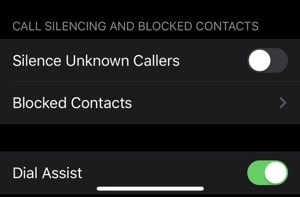
Step 3: Here, scroll down to the Call Silencing and Blocked Contacts section.


Step 4: Turn on the Silence Unknown Callers feature.
More iOS 13 How-tos

We’re working on bringing you more detailed guides for how to use the new and awesome features in iOS 13. Once you’ve read our iOS 13 tips and tricks article, read our how-tos below.

Chuwiには、カスタマイズされたラップトップ、タブレットPC、妥協のない品質、安定性、サポート、パフォーマンスを備えたミニノート pcエクスペリエンスの世界有数のテクノロジーパートナーになることをミッションがあります。


Sponsor ads:

Gihosoft RePicvid Free Photo Recovery Software provides a free photo recovery software for windows to help users recover the deleted or lost photo for free.

If you lost data after you updated to a new iPhone, you can always use Gihosoft iPhone Data Recovery to get the data back from the old iPhone or backup.You may also like: iphonerecovery.com

Monday, 1 July 2019

Tumblr Video Not Working on iPhone


Way 1. Check the Network

The next thing that you can do is to check the network that you're using to see if there's any kind of problem with it. A potential problem could cause your phone not connecting to the video and could result in difficulty watching a video.

Step 1: Go into your settings and select "General" and then choose "Reset".

Step 2: Select "Reset Network Settings" and log in to your network again.


Way 2. Update Tumblr App

Sometimes your app is outdated and you need a newer version. If that's the case, you'll need update the app and see if that fixes the problem that you're having.

Step 1: Go into the app store.

Step 2: Check available updates and update the app if available.
Way 4. Uninstall & Reinstall Tumblr App

You can also try to remove the app entirely and then install it again. This is actually a simple process as well and could fix a glitch in the app.

Step 1: Press and hold on any app on your home screen.

Step 2: When the apps shake and the "x" appears, find the app you want. Click the "x" to delete and accept that you want to delete the app.

Step 3: Press the home key to stop the apps from shaking.

Step 4: Go into the app store and search for the Tumblr app. Now click to install the app.


Way 3. Restart Your iPhone

Sometimes all it takes to get your apps work again is simply to restart your device. It's actually quite easy to do this and you'll be on your way again in no time.

Step 1: Press and hold the power button.

Step 2: Slide the power off bar to the side. Wait for your device to power down.

Step 3: Press and hold the power button. Wait for your device to power up.


Way 4. Update iOS Version

If your device is not currently operating on the latest version of iOS that could be the problem you're having with your videos and anything else. It's easy to check.

Step 1: Go into device settings and select "General".

Step 2: Select "Software Update" and check for a new version.


Tip. What to Do If Losing Data after Fixing

Well, that actually makes things a whole lot easier because you can try out different options. Primarily, you can just restore an older backup to your device.

Sponsor ads:

Chuwiには、カスタマイズされたラップトップ、タブレットPC、妥協のない品質、安定性、サポート、パフォーマンスを備えたミニノート pcエクスペリエンスの世界有数のテクノロジーパートナーになることをミッションがあります。


AirPods Aces Waterproof Earbuds Test against Beats and Samsung Galaxy Buds


One of the biggest qualm most of us have with the AirPods is that it is not water-resistance. Despite the lack of official ratings, AirPods have generally fared well when immersed in water. CNET compared AirPods with other truly wireless buds that are water-resistance and surprisingly, AirPods fared better than some of its rivals.

CNET chose three truly wireless in-ear headphones and subjected them to a myriad of water-related tests. The AirPods, Samsung Galaxy Buds (IPX2) and Beats Powerbears Pro (IPX4) were pitted against each other. The IPX2 rating translates to surviving drops of water falling on it, like during rain or even sweat. Meanwhile, IPX4 rating is conferred to devices that can survive a strong splash of water for up to ten minutes.

The first bout of the test was a sweat test. Real life situations were recreated and the three headsets were tested.

To test the claims, Lexy and I took simulating a sweaty workout at the gym. We wore each pair of earphones and sprayed each other in the face with water until droplets trickled down the sides of our heads.

The folks at CNET removed the devices after the workout session and dried them. All three devices passed the test with no damage whatsoever.

The second test was brutal and involved dunking each pair of headphones in a fish bowl.

We dunked each pair into a clear fish bowl with a foot of water for five seconds. It’s worth noting that the AirPods went about two seconds over because of bad time-keeping on our part. We just love pushing the AirPods beyond what they are designed to do.

This is where we expect the AirPods to fail right? No thats not what happened. All three headphones emerged unharmed by the test. There was no deterioration or any impact on audio quality.

I am pretty sure most of us have tossed clothes in the washing machine without realizing that our ear-phones are inside the pockets. A test on similar lines was recreated.

We took each set of buds out of their cases and zipped them up in a jacket pocket before throwing them into separate washing machines with a few more items that needed washing. All three machines were set on a normal 30-minute cycle with cold water and laundry detergent.Sponsor ads:

Gihosoft RePicvid Free Photo Recovery Software provides a free photo recovery software for windows to help users recover the deleted or lost photo for free.

If you lost data after you updated to a new iPhone, you can always use Gihosoft iPhone Data Recovery to get the data back from the old iPhone or backup.You may also like: iphonerecovery.com


In this test, the Samsung Galaxy Bud gave away and faint music could be heard from one of the earbuds while the other one was completely dead. Thankfully PowerBeats Pro worked just fine. AirPod had taken very little damage and it sounded muffled.

The AirPods had a better recovery: both had decent volume, although the music didn’t sound as crisp as before all of our water challenges and the audio clip recorded from the microphone still sounded muffled.

The test teaches us a thing or two about truly wireless in-ear headphones. Firstly, none of them are completely water-resistance and it is almost always a bad idea to bring it in contact with water. That being said, the water resistance rating will offer you some sort of assurance when you get wet in rain. Did you ever drop your AirPods into the water? Let us know if AirPods survived or met a watery grave!

[via CNET]

Thursday, 20 June 2019

Apple’s Discontinued Airport Express, Extreme, and Time Capsule Get Firmware Security Update


Apple’s AirPort lineup was discontinued last year. However, the company is still supporting the devices and has now rolled out the firmware security update (7.8.1). Airport Express, Extreme, and Time Capsule Base Stations have already received the security update. The update is meant for all 802.11n Wi-Fi base stations.

It is good to see Apple keeping up to their promise and updating the discontinued AirPort devices. Apple has not revealed the update specifics but claims that it improves the security of all 802.11n Wi-Fi base stations. The AirPort was previously updated to version 7.7.9 in December 2017.

AirPort and Time Capsule users can update by using AirPort Utility in macOS. The tool will automatically scan for an update and it will be installed upon approval. Apple decided to discontinue the AirPort WiFi router in April last year. It was later learned that Apple had pulled the shutters on the AirPort division and reassigned the employees to other divisions.

“Firmware update 7.8.1 improves the security of your base station and is recommended for all Apple 802.11n Wi-Fi base stations including AirPort Express, AirPort Extreme and AirPort Time Capsule”

Apple has also announced a new HomePod security feature meant for safeguarding third-party routers. If you need help updating the AirPort’s firmware, please refer to the support document. After disbanding the AirPort, Apple started selling Linksys Velop Mesh WiFi System on its store.


Read more:Convert Image to Video (Online/Mobile/PC)

Read more:10 Software to Test Hard Drive Speed 2019

Read more:Go Live on Tik Tok/Musical.ly in 2019

TCL vs. Hisense

  TCL vs. Hisense TCL and Hisense are both  Chinese electronics companies  that make televisions and other appliances. Here are some key dif...